Getting Started with Capacity Planning
Worklog360 Capacity Planning helps resource managers, project/program managers and team leads schedule people across Jira issues, understand team availability, and identify future capacity gaps before they become delivery problems.
With Capacity Planning, you can:
-
Schedule people on Jira issues
-
Plan project delivery based on team capacity
-
Manage vacations and internal work
-
Track project milestones
-
Identify available and overallocated resources
-
Compare planned work against actual logged time
Scheduler Setup
Before using Capacity Planning, make sure the following information has been configured in Worklog360.
Configure Scheduler Permissions
Navigate to:
Settings → Permissions
Administrators can select which Jira groups are allowed to access Capacity Planning.
Only users belonging to the selected Jira groups will be able to access and manage the scheduler.
Typical users who require access include:
-
Project Managers
-
Resource Managers
-
Operations Managers
-
Delivery Managers
-
Team Leads
-
PMO Managers
Users with access to the scheduler can:
-
View the Projects View
-
View the Team View
-
Create and modify assignments
-
Manage time off
-
Create milestones
-
Review team capacity and utilization
This allows organizations to limit scheduling activities to the people responsible for planning and resource management while keeping the process centralized and controlled.
Team members who do not have access to the scheduler can still view their planned work from Time → My Timesheet using the Show Scheduled Hours option.
Add People
Navigate to:
Manage → People
Add the team members you want to schedule.
Only people added to Worklog360 will appear in the Team View and be available for scheduling.
Add Projects
Navigate to:
Manage → Projects
Select the Jira projects you want to include in Capacity Planning.
Only projects added to Worklog360 will appear in the Projects View.
Configure Internal Issues
Navigate to:
Manage → Internal Issues
Internal Issues represent non-project work that consumes team capacity.
Examples include:
-
Vacation
-
Sick Leave
-
Training
-
Internal Meetings
-
Company Events
-
Administrative Work
These Jira issues are used when scheduling work that is not related to a delivery project.
Once People, Projects, and Internal Issues have been configured, you're ready to start planning work.
Understanding the Scheduler
The Capacity Planner provides two scheduling views:
-
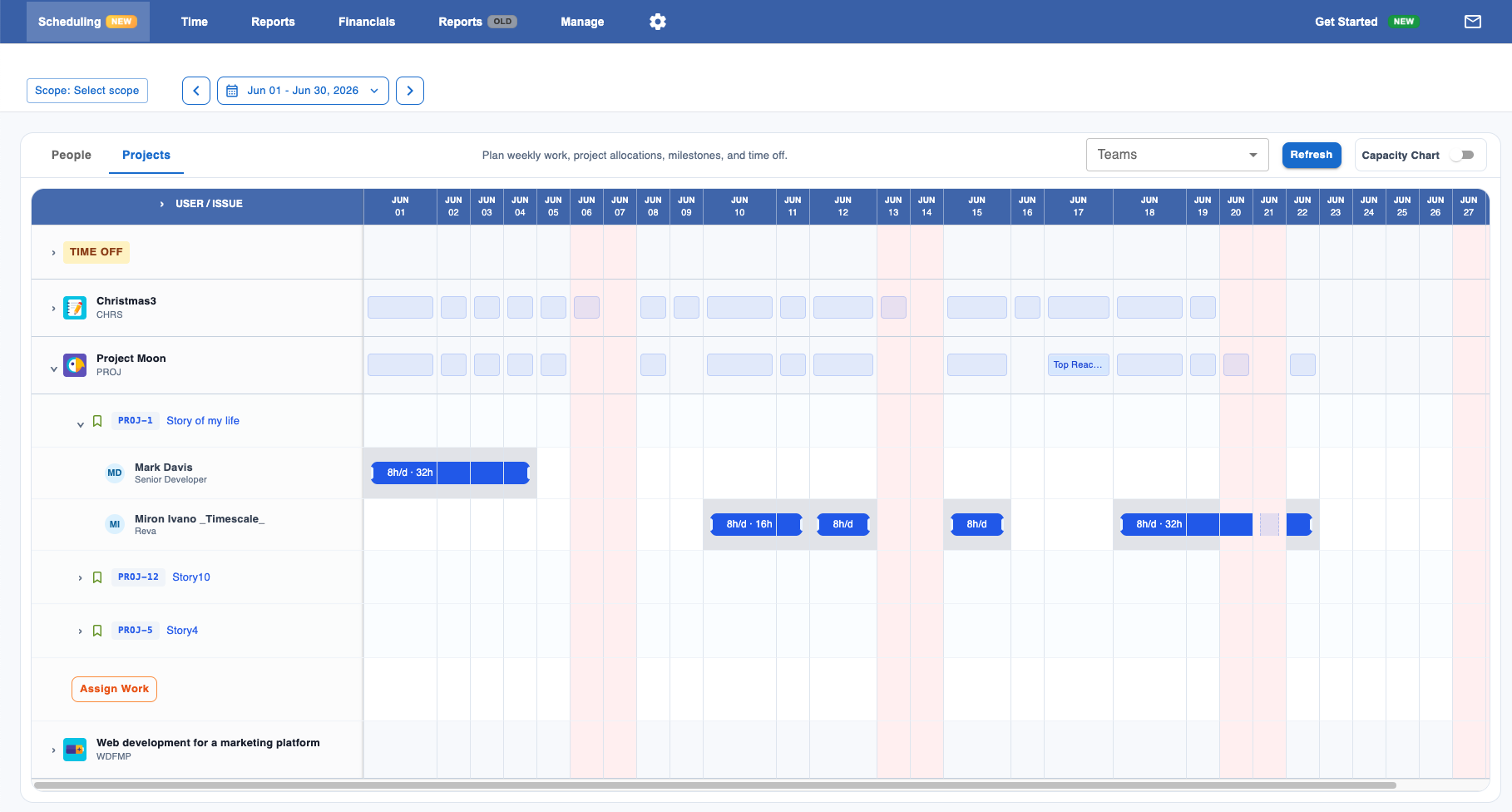
Projects View
-
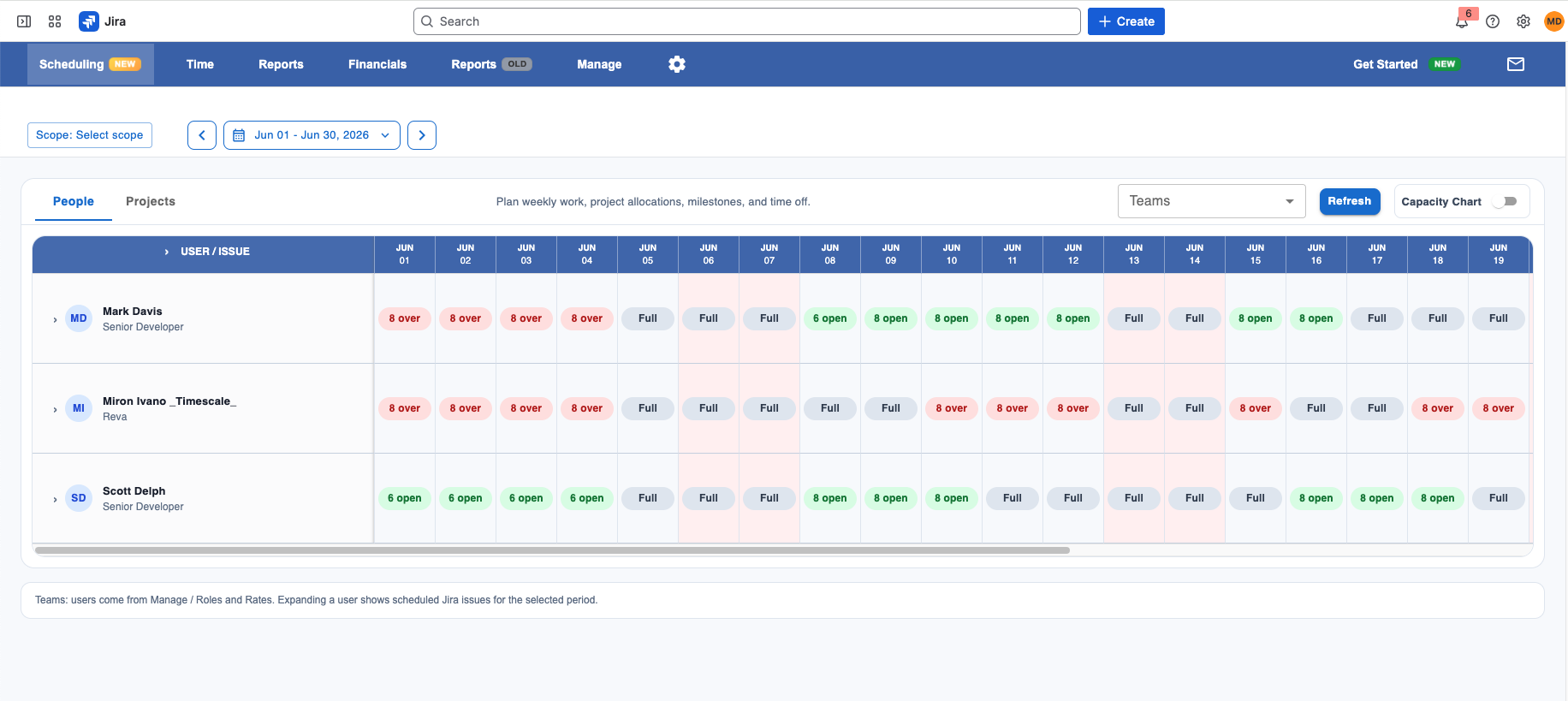
Team View
Both views display the same scheduling information but from different perspectives.
Projects View
The Projects View organizes work by project.
The first section in the Projects View is the Time Off section, where managers can schedule vacations, sick leave, training, and other internal activities using the Internal Issues configured in Worklog360.
Below the Time Off section, you'll find all projects included in Capacity Planning.
The Projects View displays:
-
Projects
-
Jira Issues
-
Scheduled Assignments
-
Team Members
-
Milestones
-
Time Off
Use the Projects View to answer questions such as:
-
Which people are assigned to this project?
-
How much work is planned for each issue?
-
Do we have enough capacity to complete the project?
-
Are important milestones at risk?
-
When are team members unavailable?
Team View
The Team View organizes the same information by person instead of project.
Use the Team View to answer questions such as:
-
Who has available capacity?
-
Who is fully allocated?
-
Who is overbooked?
-
Which issues is a person scheduled to work on?
-
When is a person unavailable?
This view is particularly useful when planning future work and identifying available resources.
Scheduling Work
Work can be scheduled from either the Projects View or the Team View.
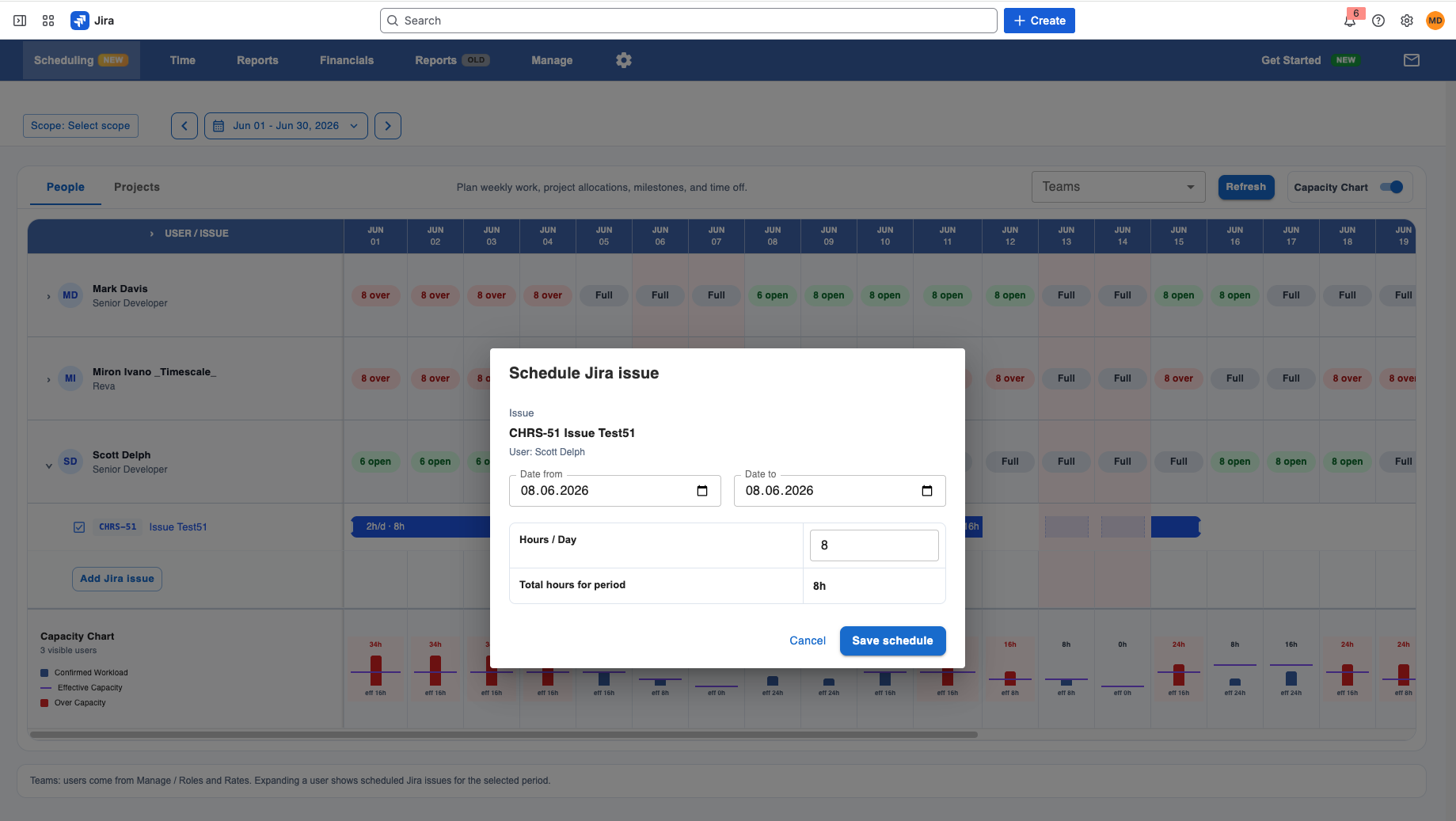
Schedule from Projects View
-
Open the Projects View.
-
Expand a project.
-
Select a Jira issue.
-
Select a team member.
-
Choose the desired date range.
-
Enter the planned hours.
-
Save the allocation.
The scheduled hours will immediately appear in both the Projects and Team Views.
Schedule from Team View
-
Open the Team View.
-
Select a team member.
-
Choose a Jira issue.
-
Select the desired date range.
-
Enter the planned hours.
-
Save the allocation.
This approach is useful when planning work around a specific person's availability.
Managing Time Off
Time Off is managed directly from the Projects View.
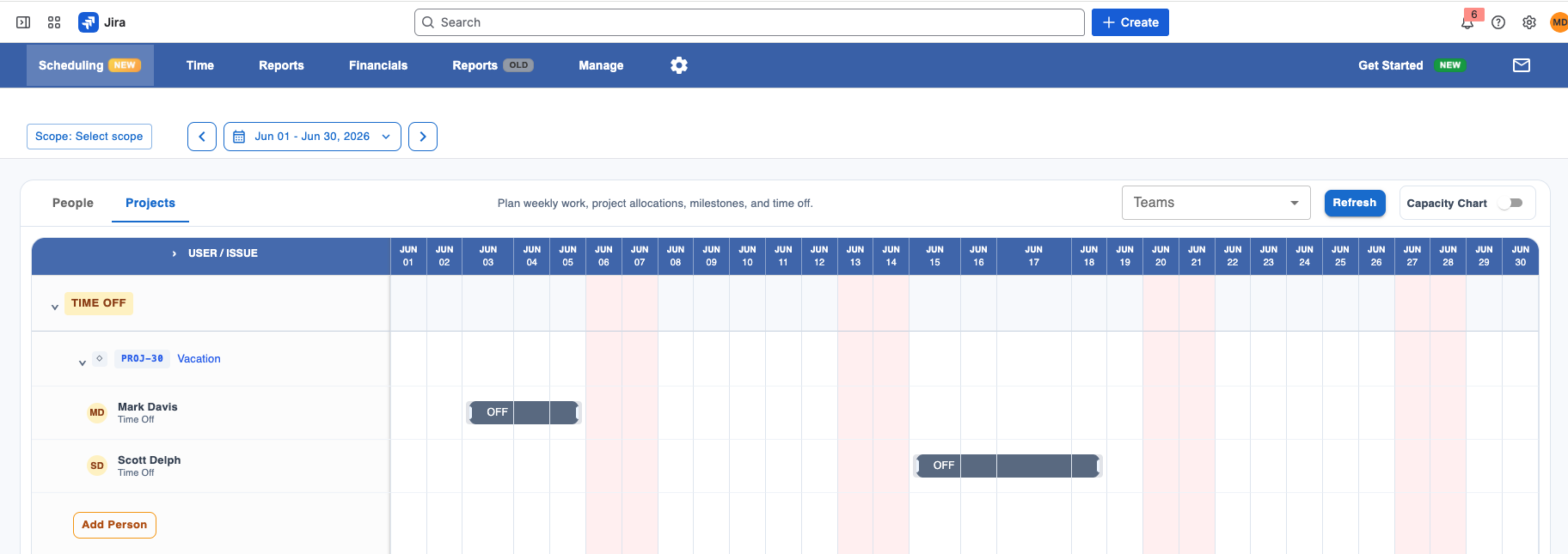
The Time Off section appears at the top of the Projects View and allows managers to schedule planned absences and internal activities.
To schedule time off:
-
Open the Projects View.
-
Expand the Time Off section.
-
Click Add Person.
-
Select the employee.
-
Select an Internal Issue such as Vacation, Sick Leave, or Training.
-
Choose the date range.
-
Enter the planned hours.
-
Save.
Time Off allocations automatically reduce the person's available capacity and are included in capacity calculations throughout the scheduler.
Splitting Assignments
As project priorities change, you may need to adjust an existing assignment without recreating it from scratch.
Worklog360 allows you to split a scheduled assignment into two separate assignments directly from the scheduler.
This is useful when:
-
A person needs to switch to another project partway through an assignment
-
Planned hours change during the assignment period
-
A vacation or absence needs to be inserted into an existing schedule
-
Work needs to be rescheduled across multiple phases
To Split an Assignment
-
Navigate to either the Projects View or Team View.
-
Locate the assignment you want to modify.
-
Hover over the assignments days edges.
-
Click
-
Save
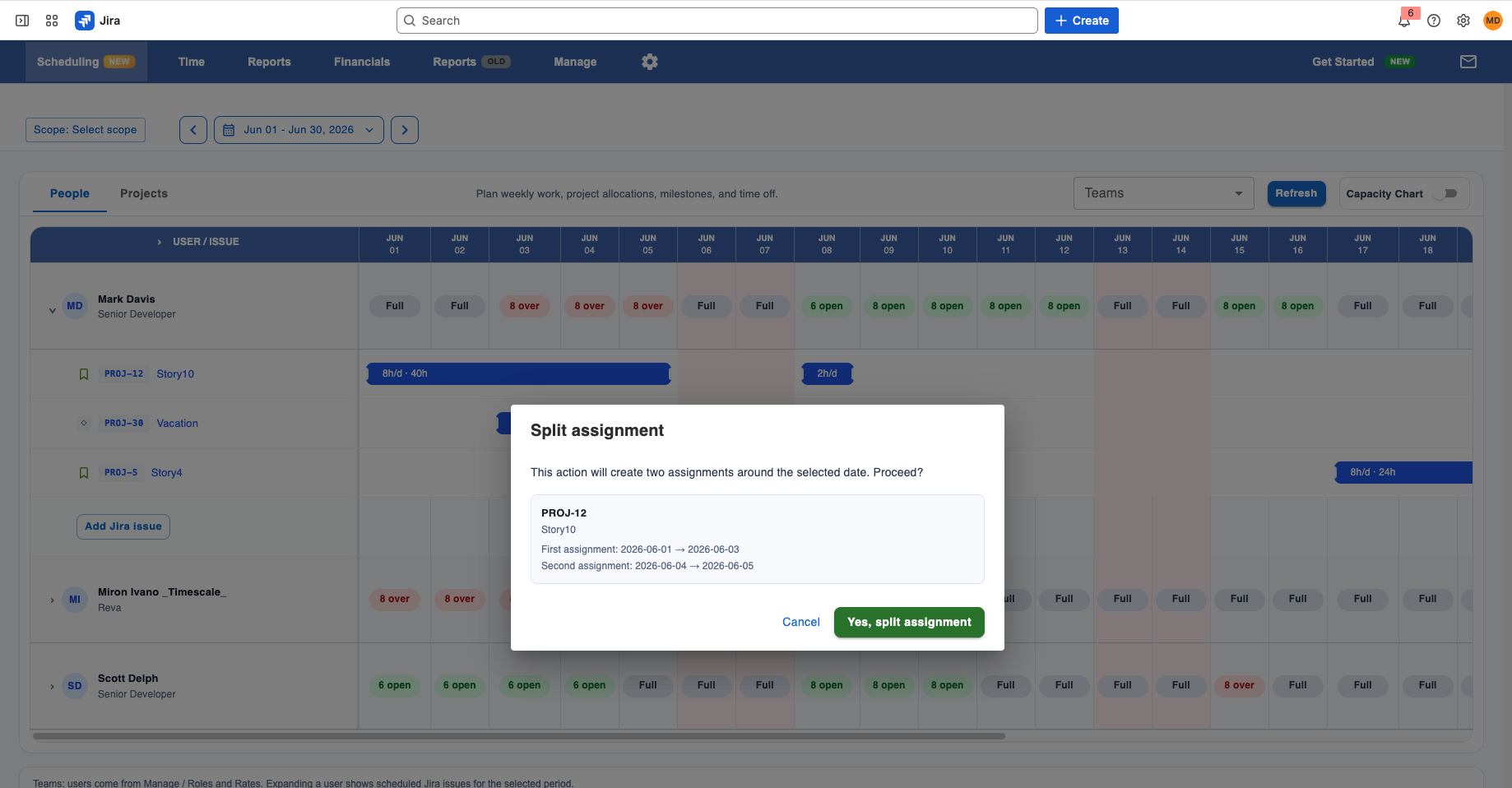
Worklog360 will create two separate assignments while preserving the original scheduled hours and dates.
Once split, each assignment can be edited independently.
Example
Imagine a developer is scheduled for:
Project A
-
June 1 – June 30
-
20 hours per week
A new priority appears on June 15.
By splitting the assignment on June 15, you can create:
Assignment 1
-
June 1 – June 14
-
20 hours per week
Assignment 2
-
June 15 – June 30
-
20 hours per week
You can then modify the second assignment without affecting the first.
Splitting assignments provides greater flexibility when managing changing project priorities and resource allocations.
Managing Milestones
Milestones help teams track important project dates and delivery targets directly within the Capacity Planner.
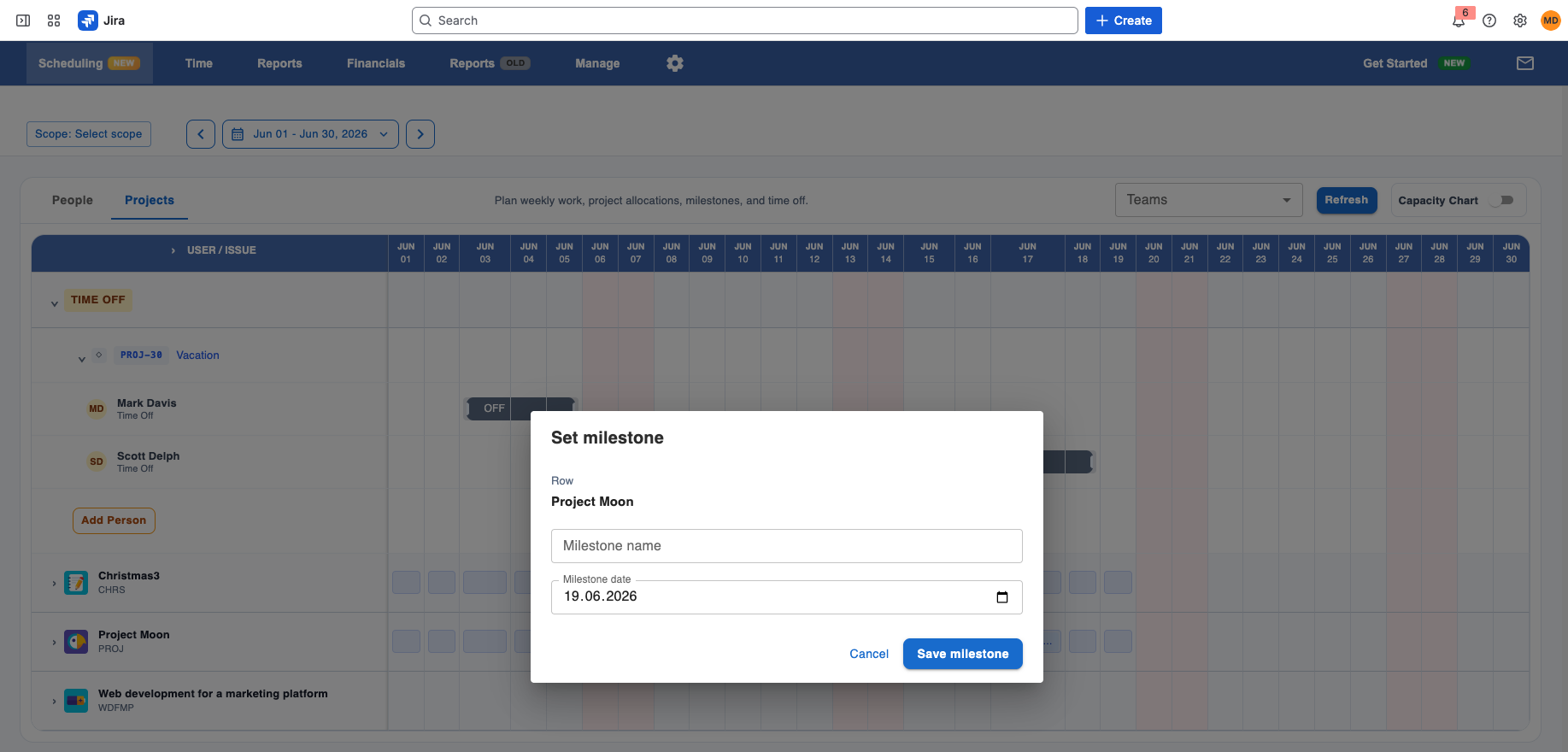
Examples of milestones include:
-
Project Kickoff
-
Requirements Sign-off
-
Client Review
-
User Acceptance Testing
-
Release Date
-
Go-Live
Milestones are managed directly from the Projects View.
To add a milestone:
-
Open the Projects View.
-
Locate the project where you want to add the milestone.
-
Click on the desired date in the project timeline.
-
Select Add Milestone.
-
Enter a milestone name.
-
Save.
Milestones are displayed alongside scheduled assignments, giving project managers visibility into both planned work and key delivery dates.
Why Use Milestones?
Milestones help teams:
-
Visualize important project deadlines
-
Align scheduled work with delivery targets
-
Identify scheduling risks early
-
Communicate project progress more effectively
Because milestones are displayed directly within the Capacity Planner, managers can quickly determine whether enough work has been scheduled before critical project dates.
Capacity Summary Chart
The Scheduler includes an optional Capacity Summary Chart.
Use the chart toggle in the Scheduler toolbar to show or hide the chart.
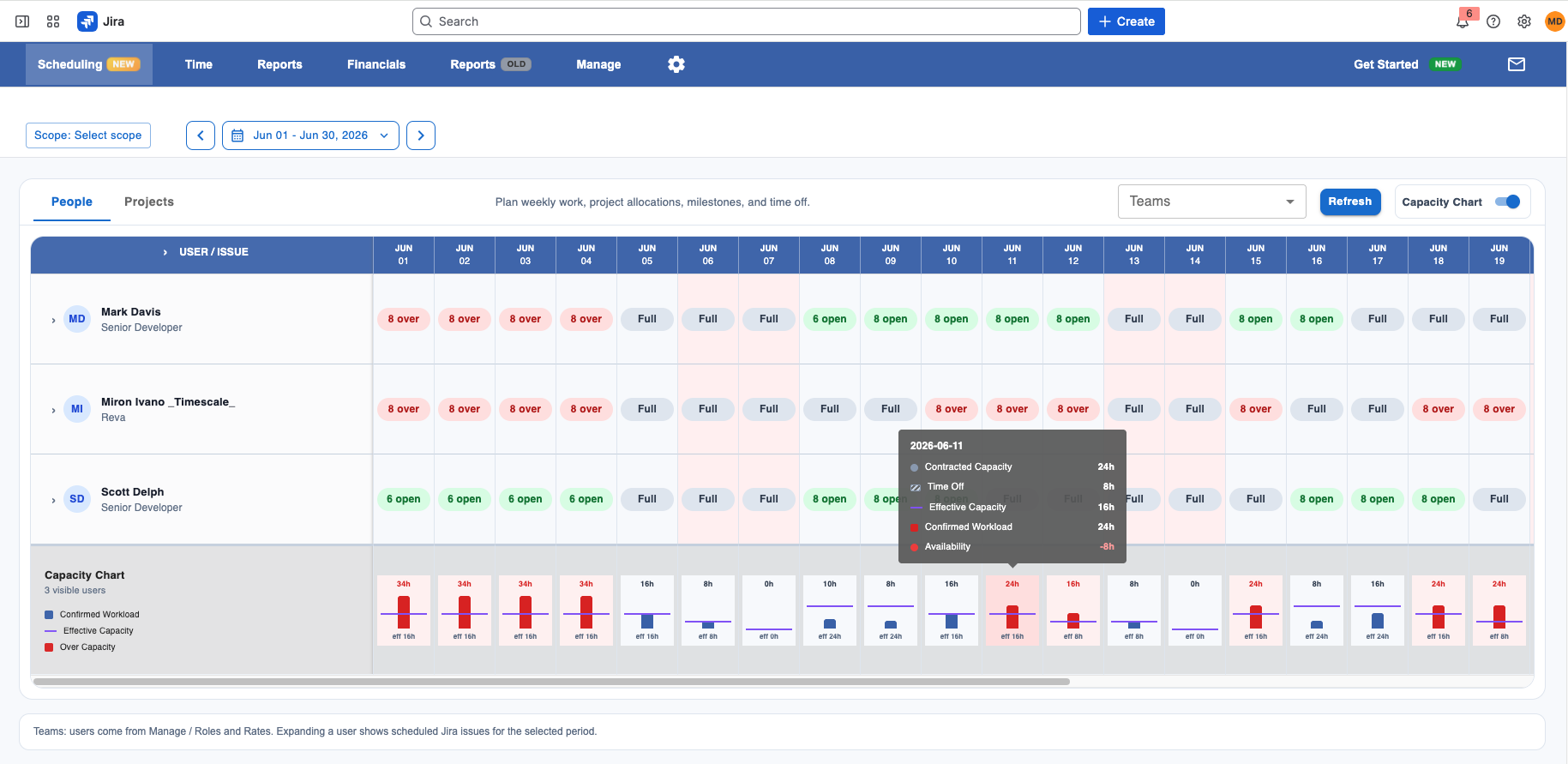
The chart provides a high-level overview of utilization for all currently visible users.
The Capacity Summary Chart displays:
Confirmed Workload
The total number of scheduled hours assigned to visible users.
Effective Capacity
The total available working capacity after accounting for planned time off and availability settings.
Over Capacity
Hours scheduled beyond the available capacity of the visible team members.
The chart helps managers quickly identify future resource shortages and allocation conflicts without reviewing individual assignments.
Understanding Planned vs Actual Hours
Capacity Planning focuses on planned work.
Worklog360 tracks two different types of hours:
Scheduled Hours
Scheduled Hours represent planned future work.
They answer the question:
What work do we expect people to do?
Logged Hours
Logged Hours represent actual work performed and recorded in Jira.
They answer the question:
What work was actually completed?
Keeping planned and actual hours separate helps teams improve forecasting accuracy and project delivery planning.
Viewing Scheduled Hours While Logging Time
Team members can view their planned work while entering time.
To display scheduled assignments:
-
Navigate to Time → My Timesheet.
-
Enable the Show Scheduled Hours option.
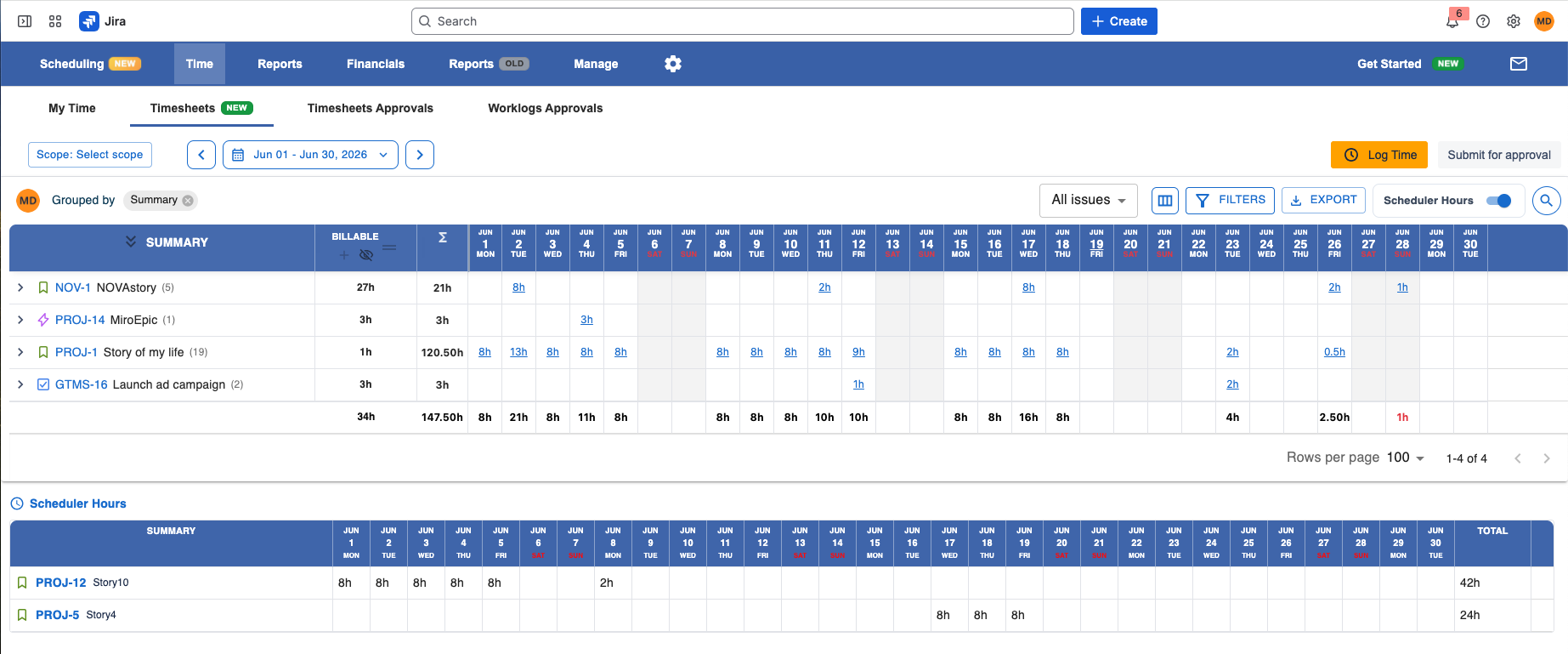
When enabled, Worklog360 displays scheduled assignments alongside logged work.
This allows team members to:
-
See which Jira issues they are planned to work on
-
Compare planned versus actual hours
-
Identify work that still needs to be logged
-
Stay aligned with project plans
Scheduled hours are displayed for reference only and do not automatically create Jira worklogs.
Best Practices
Schedule at the Jira Issue Level
Allocate work directly to Jira issues whenever possible. This improves reporting accuracy and provides better visibility into future workload.
Plan Weekly
Capacity planning is most effective when schedules are reviewed and updated regularly.
Record Time Off Early
Enter planned vacations and absences as soon as they are known to improve forecasting accuracy.
Monitor Capacity Regularly
Review the Capacity Summary Chart frequently to identify overallocated resources before they become delivery risks.
Use Milestones for Key Dates
Add important project dates directly to the scheduler to keep delivery plans aligned with resource availability.
Next Steps
You are now ready to start planning capacity in Worklog360.
Use:
-
Projects View to plan project delivery
-
Team View to manage resource availability
-
Time Off to track absences and internal work
-
Milestones to track important project dates
-
Capacity Summary Chart to monitor utilization
-
Show Scheduled Hours in My Timesheet to help team members stay aligned with planned work
By combining planned work, availability, milestones, and actual logged time, Worklog360 helps teams make better delivery decisions and improve project predictability.