
Budgets
Budgets are a core part of how Worklog360 tracks and manages time, costs, and revenue across projects, clients, and internal work.
At their core, budgets act as containers for worklogs. They collect the relevant billable and non-billable time entries for a specific Worklog360 Project and budget period.
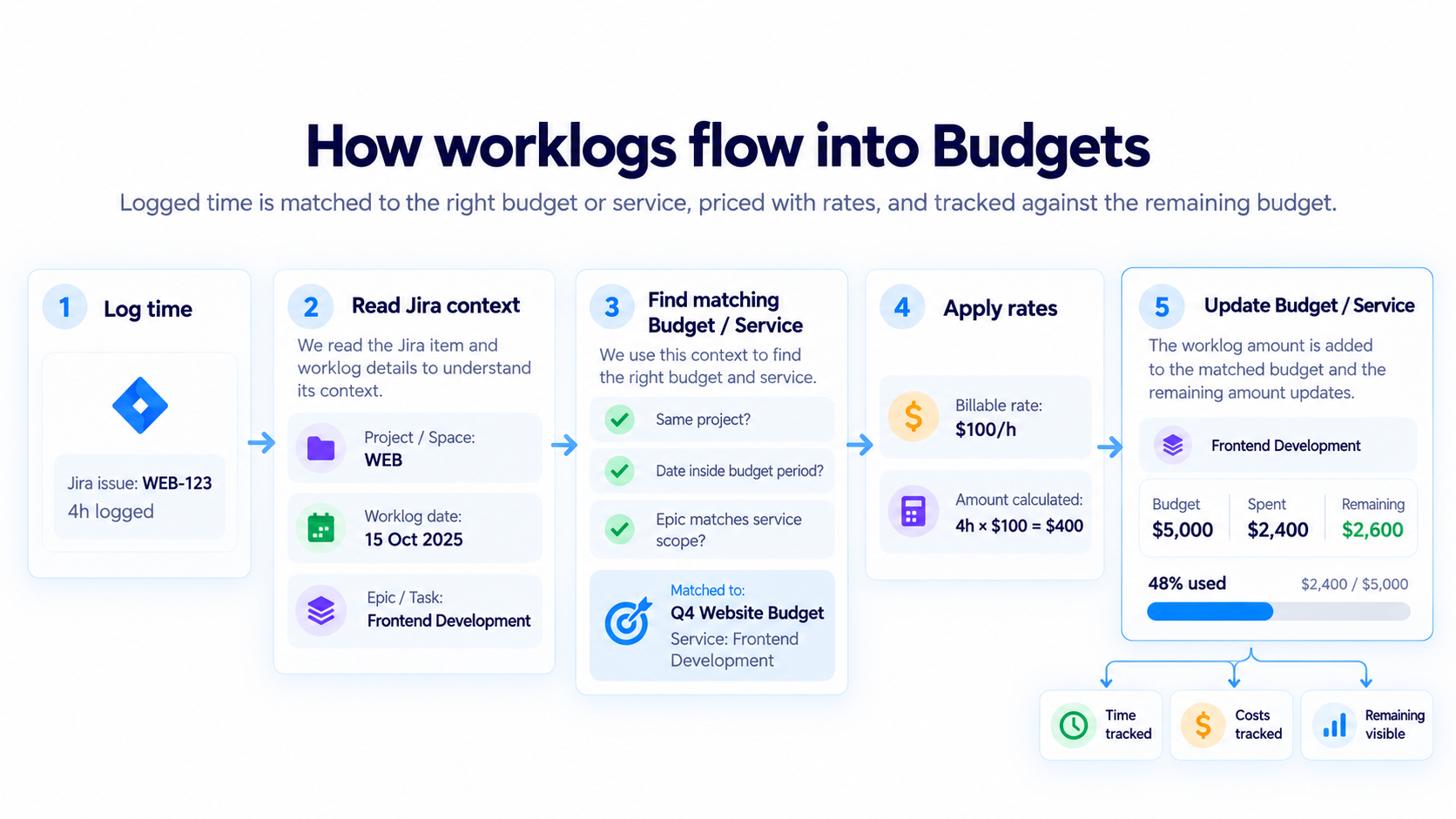
Because every Worklog360 Project is connected to a Jira Space, budgets connect the work happening in Jira with the commercial side of the project.
Budgets can be used for:
-
Client projects
-
Fixed-price work
-
Time & Materials work
-
Retainer agreements
-
Internal projects where time and cost need to be controlled (work in progress)
In short, Budgets are the foundation of Worklog360’s financial management. They connect time tracking, rates, project progress, services, and invoicing into one workflow.
Creating a Budget
To create a budget:
-
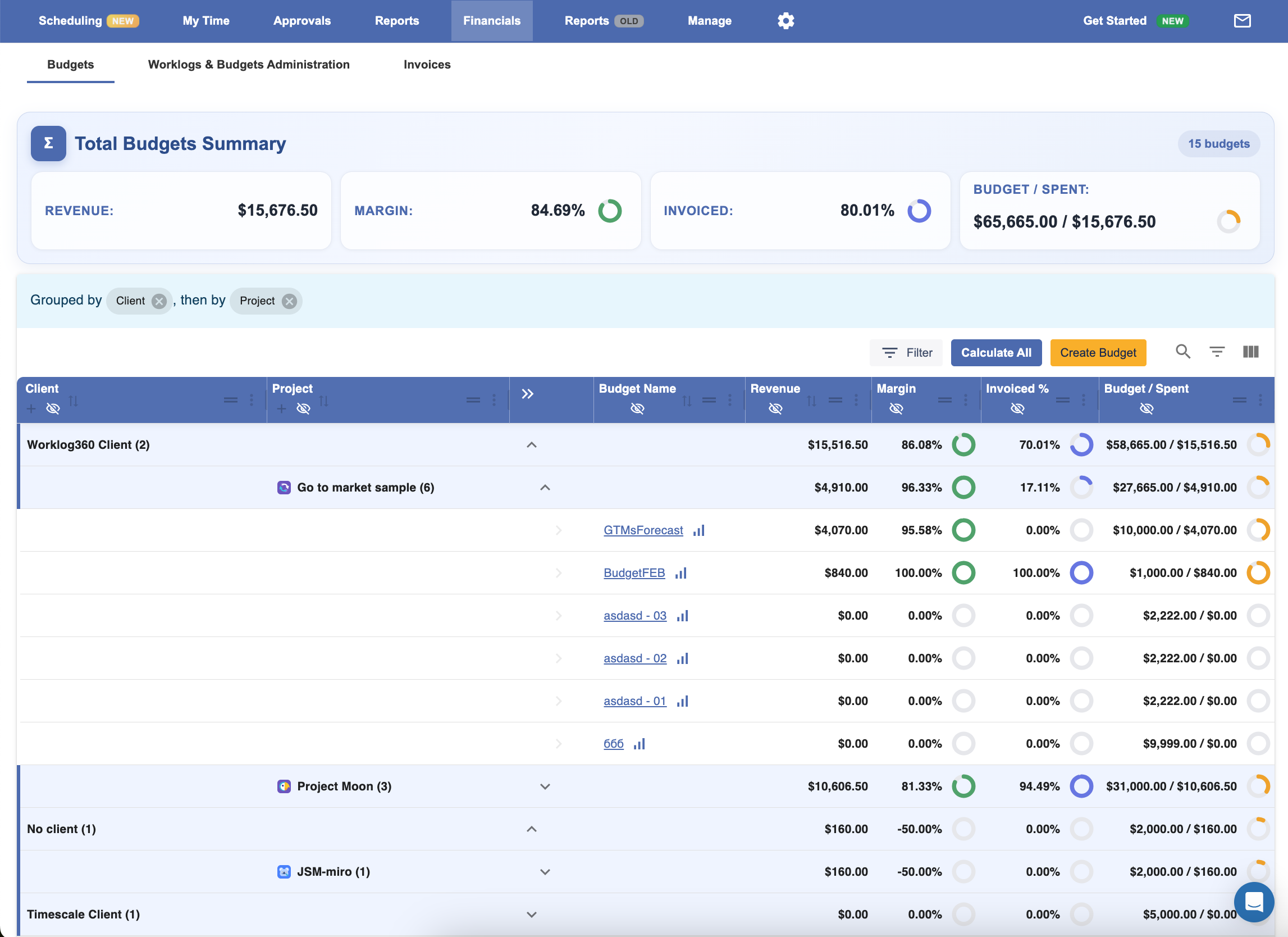
Go to Financials → Budgets
-
Click Create Budget
-
Complete the budget form
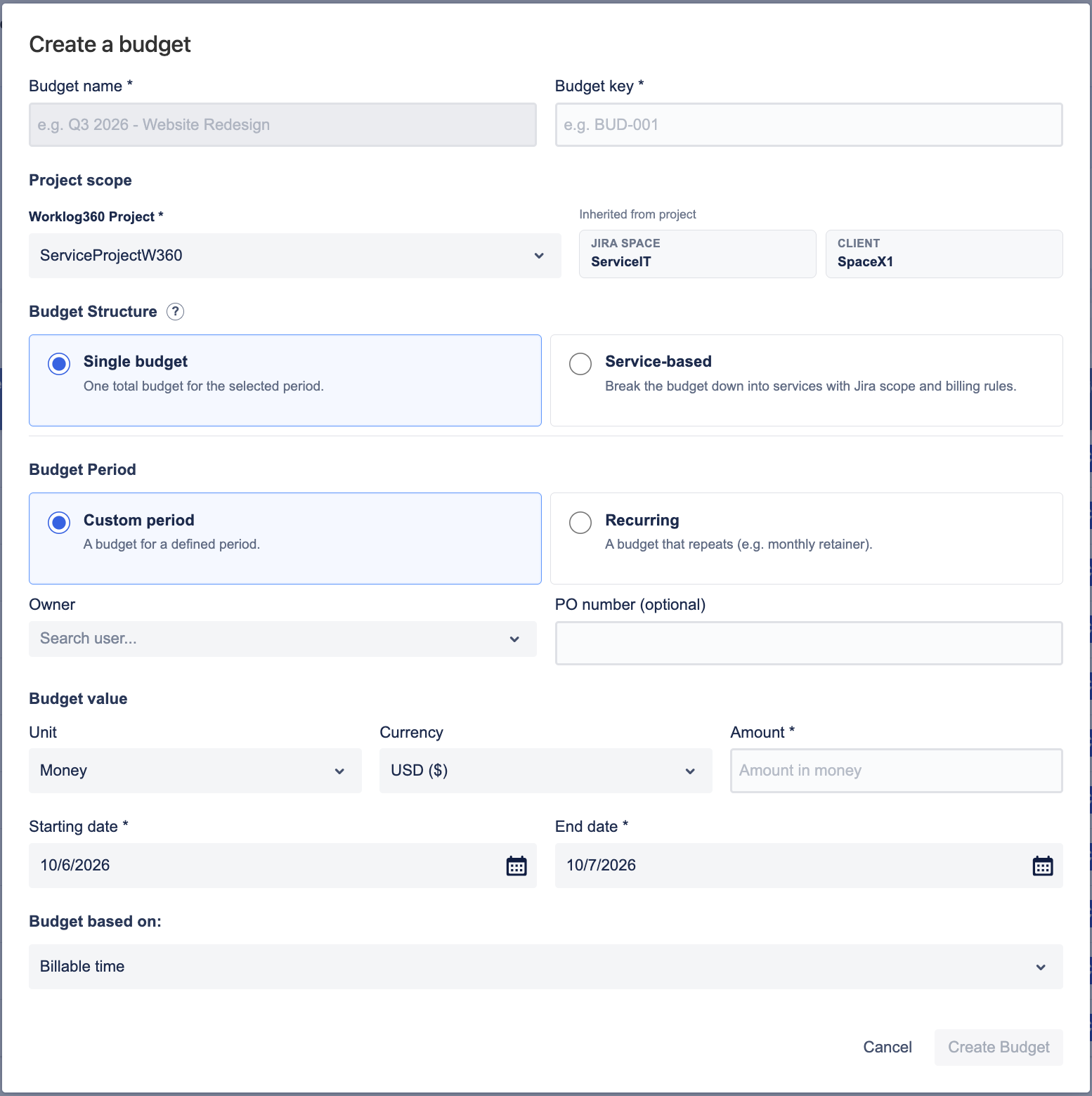
Budget name
Enter a clear name that helps users recognize the budget later.
Examples:
-
Website Redesign 2026 -
Customer Support – October -
Mobile App Phase 1
The Budget name is what users will see throughout Worklog360, so it is best to use a name that clearly describes the commercial engagement or budget period.
Budget key
Enter a unique identifier for the budget.
Examples:
-
WEB-2026 -
SUP-OCT-26 -
BUD-001
The key can be used as a short reference when identifying the budget in reports and administration screens.
Project Scope
Worklog360 Project
Select the Worklog360 Project that this budget belongs to.
This is an important field because it defines the business project that the budget is connected to.
The selected Project determines:
-
Which Jira Space the budget belongs to
-
Which client is associated with the budget
-
Which Jira work can be included
-
Where the budget will appear in project reporting
A budget always belongs to one Worklog360 Project.
Jira Space
The Jira Space is automatically inherited from the selected Worklog360 Project.
You do not need to select it manually.
This connection allows Worklog360 to identify the Jira issues and worklogs that belong to the project.
Client
The Client is also inherited from the selected Worklog360 Project.
This ensures that the commercial information for the budget remains consistent with the Project.
Budget Structure
The Budget Structure determines how detailed you want the commercial structure of the project to be.
You can choose between:
Single Budget
Choose Single Budget when you want one overall budget for the project or period.
For example:
Website Redesign — $40,000
All relevant worklogs contribute to the same overall budget.
This is the best option when you mainly want to track:
-
Total budget
-
Amount consumed
-
Remaining budget
-
Overall project progress
You can optionally split the budget into Milestones later.
Service-based Budget
Choose Service-based when the project is made up of several separate services or deliverables.
For example:
Website Redesign
UX Design — $5,000
Front-end Development — $15,000
Back-end Development — T&M
Testing — $4,000
Each service can have its own:
-
Billing type
-
Estimated effort
-
Price
-
Jira scope
This is useful when you want Worklog360 to understand what kind of work was sold to the client, not only how much the whole project costs.
Budget Period
The Budget Period determines when the budget is active.
Custom period
Choose Custom period when the budget has a fixed start and end date.
You will then define:
Starting date
The first date on which worklogs can belong to this budget.
For example:
1 October 2026
Work logged before this date will not normally be considered part of the budget.
End date
The last date on which worklogs can belong to the budget.
For example:
31 December 2026
Together, the start and end dates define the active budget period.
Recurring
Choose Recurring when the same type of budget should repeat automatically.
This is especially useful for:
-
Monthly retainers
-
Quarterly retainers
-
Support contracts
For example:
€5,000 every month for 12 months
Instead of creating 12 budgets manually, Worklog360 can create the repeating budget periods for you.
Depending on the configuration, you will define the recurrence interval and the number of occurrences.
Owner
Select the person responsible for the budget.
The Owner is typically:
-
Project Manager
-
Account Manager
-
Delivery Manager
-
Financial owner
This field helps teams understand who is responsible for monitoring the budget and taking action when it starts approaching its limit.
PO number
Enter the client’s Purchase Order number, if one exists.
Example:
PO-45832
This field is optional.
It is useful when your client requires the PO number to appear in financial records or invoices.
Budget Value
Unit
Choose how the budget should be measured.
Money
Use Money when the budget represents a financial value.
Example:
$50,000
Worklog360 will track the financial value of the work against the budget.
Hours
Use Hours when the main constraint is the amount of time available rather than money.
Example:
500 hours
This can be useful for support contracts, internal work, or projects sold as a block of hours.
Currency
For Money budgets, select the currency used by the client agreement.
Examples:
-
USD
-
EUR
-
GBP
The selected currency is used across the budget and its services.
Amount
Enter the total amount available for the budget.
For a Money budget:
50,000 USD
For an Hours budget:
500 hours
This becomes the total value against which Worklog360 calculates consumption and remaining budget.
Budget based on
The Budget based on field determines which time should contribute to budget consumption.
For example:
Billable time
When Billable time is selected, Worklog360 uses the billable portion of worklogs to calculate budget consumption.
For example:
A user logs:
-
8 hours total
-
6 hours billable
Only the 6 billable hours contribute to a budget based on Billable Time.
This is particularly useful for client budgets because internal or non-billable work does not reduce the commercial budget.
Milestones for Single Budgets
After creating a Single Budget, you can add Milestones from the Budget Details page.
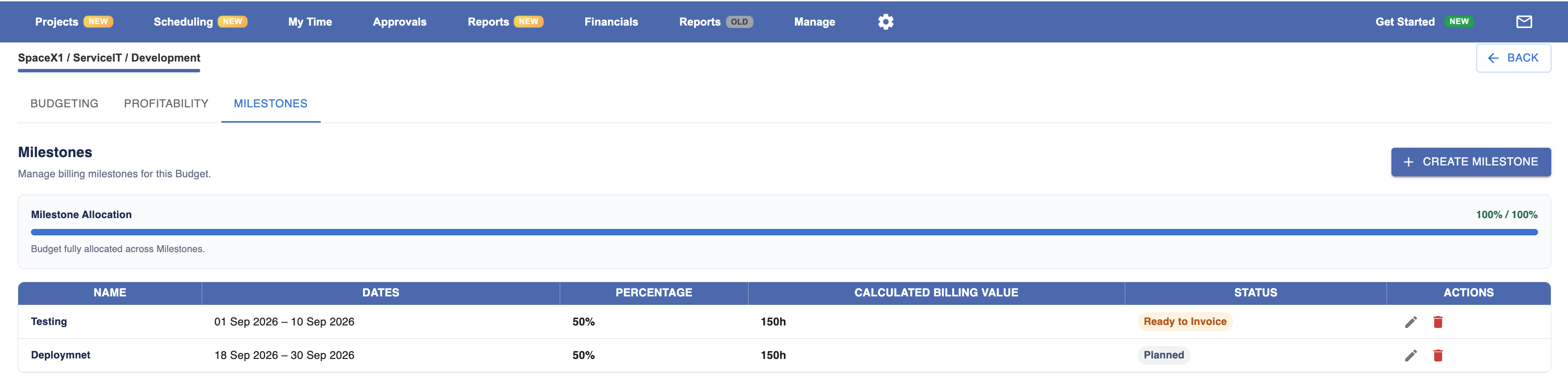
Milestones allow you to split one total project budget into delivery or billing stages.
For example, a $100,000 budget could be divided into:
-
Discovery — 20%
-
Development — 50%
-
Testing — 20%
-
Deployment — 10%
Creating a Milestone
Click Create Milestone.
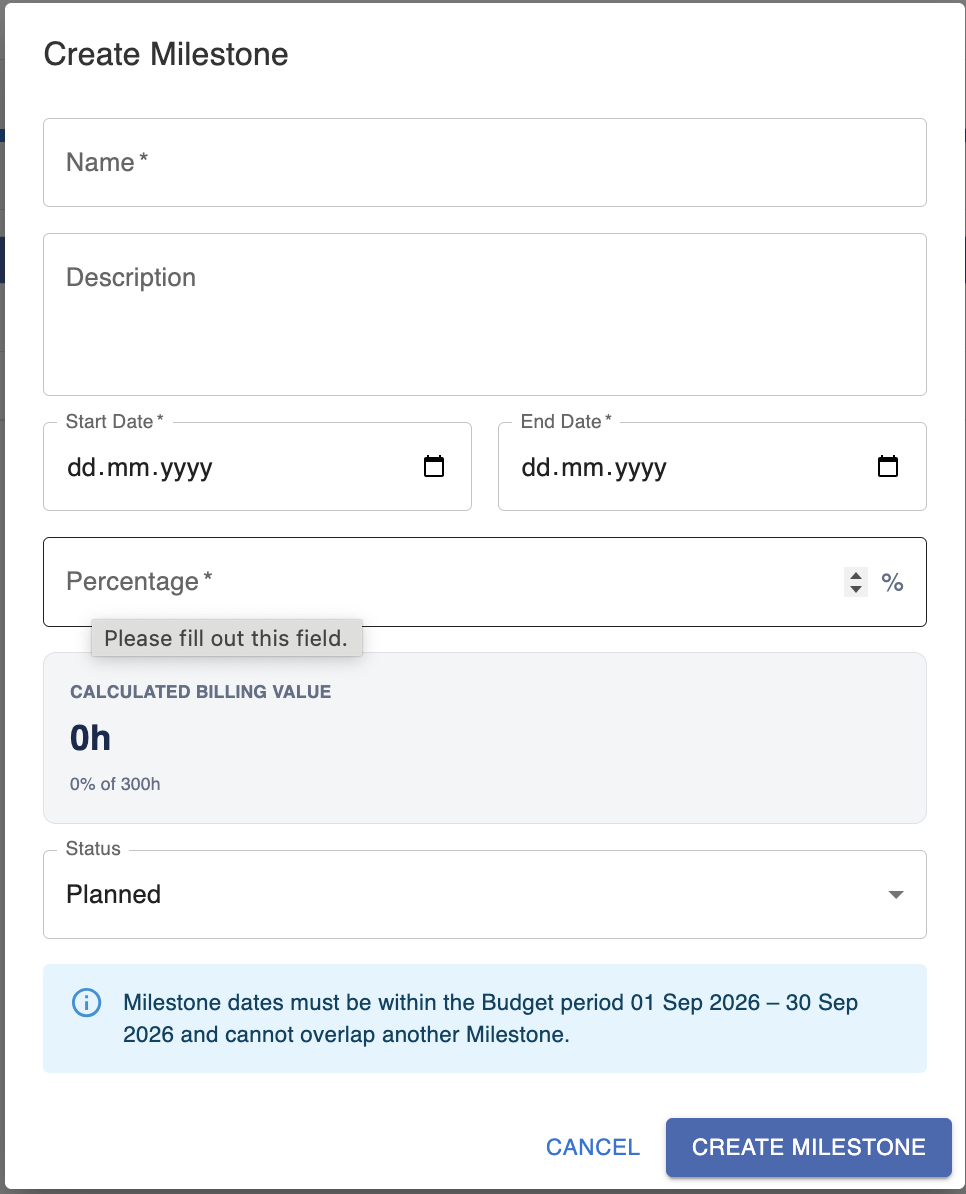
Name
Enter the milestone name.
Examples:
-
Discovery
-
Design Complete
-
UAT
-
Deployment
Use a name that represents a meaningful delivery or billing stage.
Description
Add additional information about what the milestone represents.
This is optional but can help users understand what needs to be delivered before the milestone is considered complete.
Start Date
Enter the date when the milestone begins.
The date must fall within the overall Budget period.
End Date
Enter the expected completion date.
Milestone dates cannot overlap with another milestone.
Percentage
Enter the percentage of the total budget allocated to the milestone.
For example:
If the overall budget is $100,000 and the milestone percentage is 20%, Worklog360 calculates:
Calculated billing value = $20,000
Calculated Billing Value
This field is calculated automatically based on:
Budget amount × Milestone percentage
Users do not need to calculate the value manually.
Status
Select the current milestone status.
For example:
-
Planned
-
Ready to Invoice
-
Invoiced
This helps teams understand which delivery stages are still in progress and which are financially ready for invoicing.
Services for Service-based Budgets
When you create a Service-based Budget, a Services tab becomes available in Budget Details.
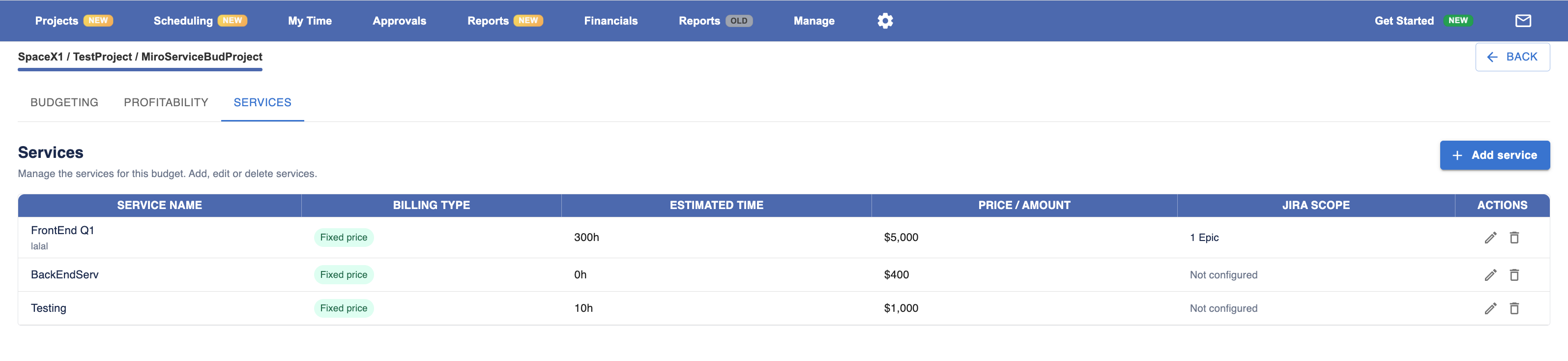
A Service represents a commercial part of the project.
Examples:
-
UX Design
-
Development
-
QA
-
Consulting
-
Project Management
-
Support
Each service can have its own pricing and Jira scope.
Adding a Service
Click Add service.
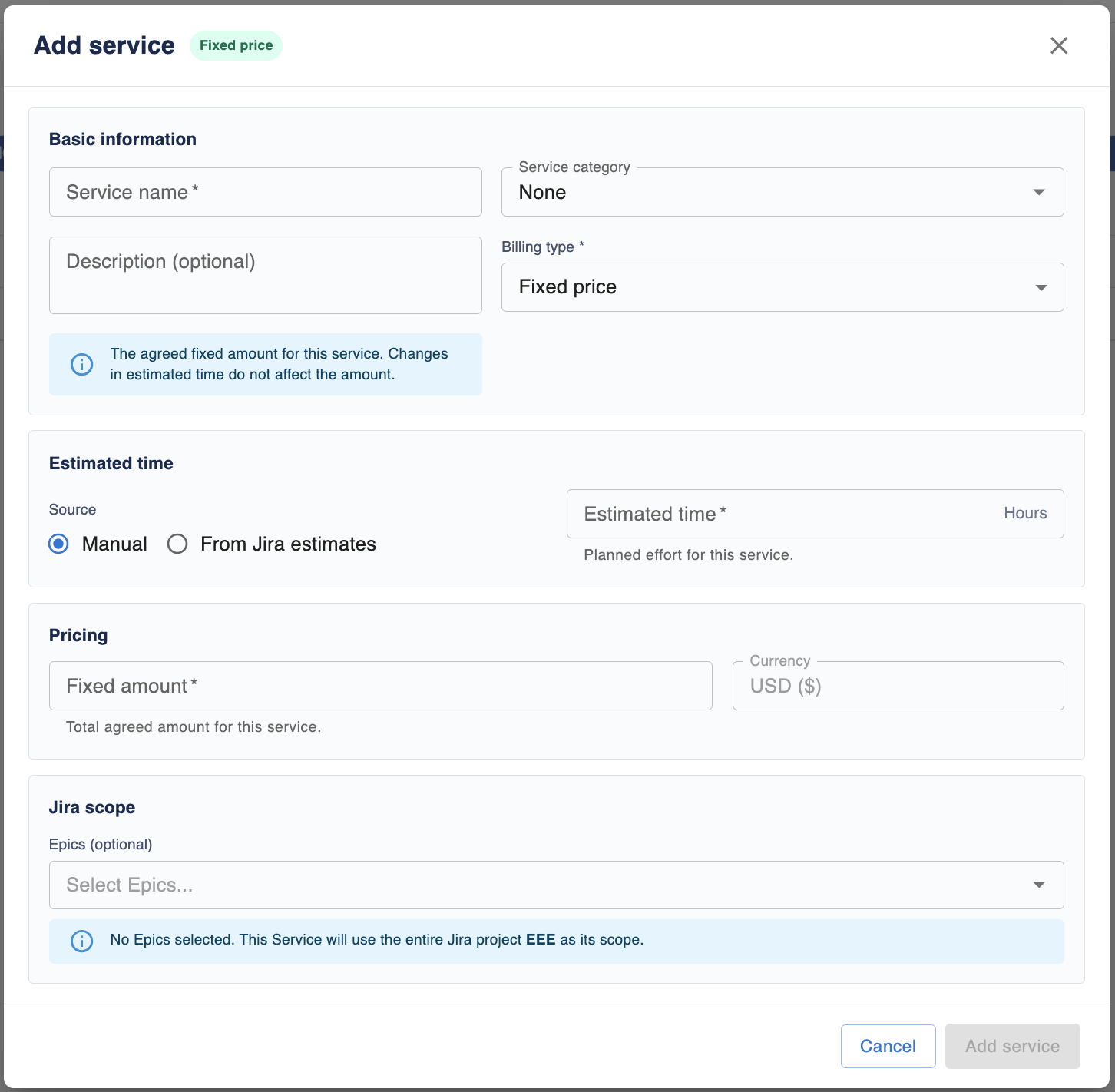
Service name
Enter a clear name for the service.
Examples:
-
Front-end Development/ Front End Developer
-
QA Testing / QA tester
-
Architecture Consulting / Consultant 1
The name should describe what the client is buying.
Service category
Optionally select a category for the service.
Categories can be useful for grouping similar services across projects and reports.
For example:
-
Development
-
Design
-
Testing
-
Consulting
-
Project Management
Description
Add a more detailed explanation of what is included in the service.
For example:
Development of the customer-facing portal, including responsive UI and integration with backend APIs.
This is optional, but useful when the commercial scope needs additional context.
Billing Type
The Billing Type defines how the service is charged to the client.
Fixed Price
Choose Fixed Price when the client has agreed to pay a predefined amount regardless of the actual time spent.
Example:
Front-end Development — $10,000
If the team spends 100 hours or 130 hours, the agreed service price remains $10,000.
This makes Fixed Price suitable for clearly defined deliverables.
Time & Materials
Choose Time & Materials when the service value is based on the actual time delivered and applicable billing rates.
Example:
Consulting — actual billable hours × hourly rate
This is suitable when the final amount depends on how much work is actually performed.
A Service-based Budget can contain a mix of Fixed Price and T&M services.
Estimated Time
Estimated Time represents the planned effort required to deliver the service.
You can choose how the estimate is calculated.
Manual
Choose Manual when you want to enter the estimate yourself.
Example:
Estimated time: 120 hours
Use this when the commercial or delivery estimate is maintained directly in Worklog360.
From Jira estimates
Choose From Jira estimates when you want Worklog360 to use the estimates already available in Jira.
This is useful when the project team already estimates work at issue or Epic level and you want those estimates to feed into the service planning.
Estimated time
The Estimated Time field shows how much effort you expect the service to require.
It is primarily used for planning and comparison with actual time.
For Fixed Price services, changing the estimate does not change the agreed service price.
Pricing
The pricing fields depend on the selected Billing Type.
Fixed amount
For Fixed Price services, enter the amount agreed with the client.
Example:
$5,000
This is the amount Worklog360 considers as the commercial value of the service.
Currency
The currency is inherited from the parent Budget.
This ensures all services inside the same budget use the same currency.
Jira Scope
The Jira Scope determines which Jira work belongs to the service.
Epics
You can optionally connect one or more Jira Epics to the service.
Example:
Service: Front-end Development
Epic: Customer Portal Frontend
Worklog360 can then associate work logged against issues under that Epic with the corresponding Service.
This is especially useful when the commercial structure of the project maps naturally to Jira Epics.
No Epic selected
If you do not select a specific Epic, the Service can use the broader Jira Space as its scope.
This can be appropriate when:
-
The service covers most of the project
-
The Jira work is not organized by Epic
-
You want users to select or assign the Service manually
The overall relationship becomes:
Jira Issue → Epic → Service → Budget → Worklog360 Project
How worklogs are assigned to Budgets
Once the budget has been created, Worklog360 uses the Project, dates, and scope to determine which worklogs belong to it.
A worklog generally needs to:
-
Belong to the Jira Space connected to the Worklog360 Project
-
Have a work date inside the Budget period
-
Match the relevant Budget or Service scope
For Service-based Budgets, Worklog360 can also use the issue's Epic to identify the correct Service.
Example
Imagine you have the Worklog360 Project:
Customer Portal
Connected to:
Jira Space: PORTAL
You create a Service-based Budget for:
1 October – 31 December
with the following Services:
-
UX Design — Fixed Price — $5,000
-
Front-end Development — Fixed Price — $15,000
-
Backend Consulting — T&M
A developer logs 6 hours against a Jira issue inside the Front-end Development Epic.
Worklog360 can associate that work with:
Customer Portal → Q4 Budget → Front-end Development
This means you can see not only that the project consumed 6 hours, but which commercial service consumed those hours.
Existing and unassigned worklogs
Some worklogs may already exist before the Budget is created or may have been created directly in Jira or another application.
Use Worklogs & Budget Administration to review and update these worklogs.
You can:
-
Mark worklogs as billable or non-billable
-
Update billable rates
-
Update calculated amounts
-
Assign worklogs to Budgets
-
Correct missing Budget or Service assignments
This is useful when migrating existing projects into Worklog360 or correcting historical data.
Choosing the right Budget Structure
Use Single Budget when you want one overall amount and mainly care about:
Total Budget → Consumed → Remaining
You can optionally use Milestones for phased billing.
Use Service-based Budget when you want to understand the commercial structure of the project in greater detail:
Project → Budget → Services → Jira work
This is especially useful when the project includes multiple deliverables, different billing types, or services mapped to specific Jira Epics.