Atlassian MCP connects your AI assistant to Jira and other supported Atlassian Cloud products.
Best for: Users connecting their Jira context to an AI assistant. After setup: Try “Find my Jira issues in progress.” For enhanced time tracking, use Worklog360 MCP alongside it.
Worklog360 MCP guides: Overview · Time Tracking · Team Approvals · Automation Examples · Tool Reference
When used together with Worklog360 MCP, your assistant can find Jira issues, retrieve existing time entries, and create or edit worklogs without switching between applications.
1. Why Connect Atlassian MCP?
Worklog360 MCP and Atlassian MCP complement each other.
|
Atlassian MCP |
Worklog360 MCP |
|---|---|
|
Find Jira issues |
Create time entries |
|
Retrieve existing worklogs |
Edit time entries |
|
Read project information |
Apply billable-time rules |
|
Search Jira and Confluence |
Apply applicable budget and rate rules |
For example, you can ask:
Find the Jira issue assigned to me about login validation and log 3 hours on it today, with 2 hours billable.
Your AI assistant can use Atlassian MCP to identify the issue and Worklog360 MCP to create the corresponding time entry.
2. Before You Start
You need:
-
An Atlassian Cloud account with access to Jira.
-
An AI assistant that supports MCP.
-
Permission from your organization's Atlassian administrator to use the integration, where required.
Atlassian provides an officially hosted MCP server.
Atlassian MCP Server URL
https://mcp.atlassian.com/v2/mcp
You do not need to install or host the Atlassian MCP server yourself.
3. Connect Atlassian MCP to ChatGPT
Step 1 — Open ChatGPT
Go to https://chatgpt.com and sign in.
Step 2 — Find Atlassian
-
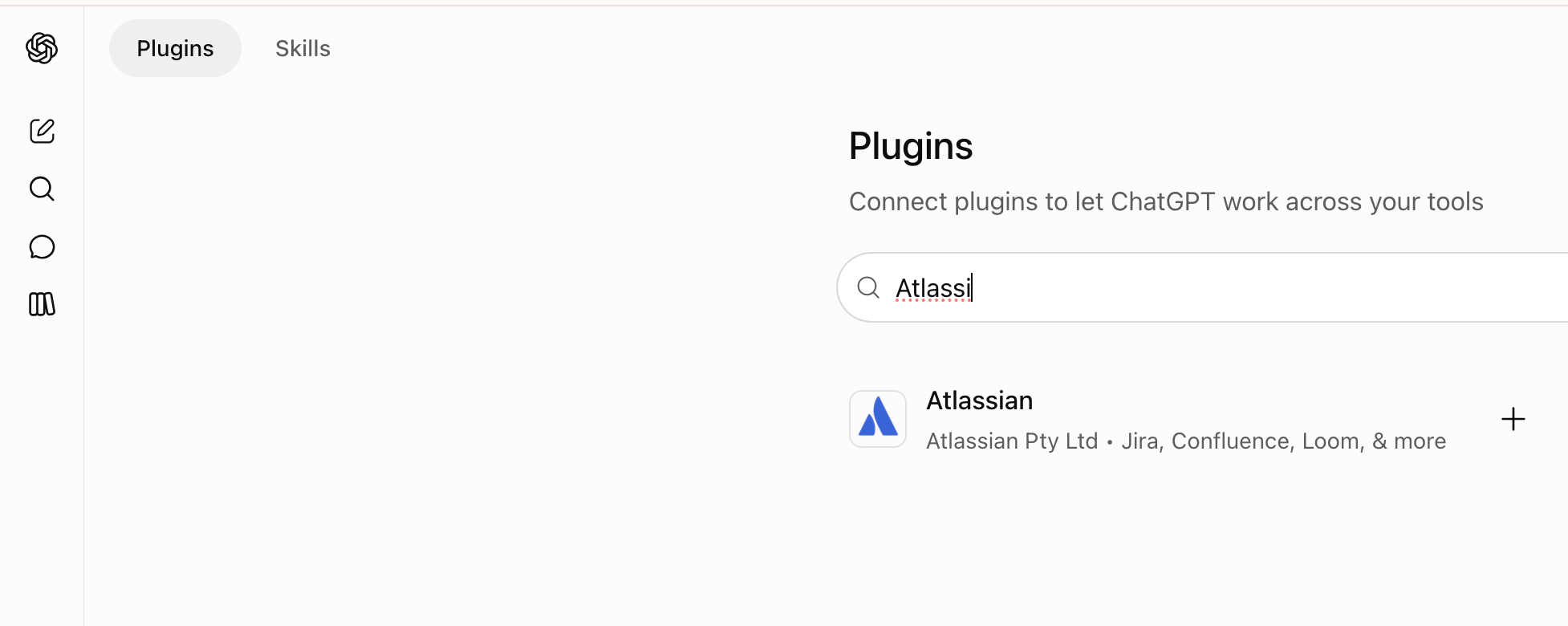
Open Plugins.
-
Search for Atlassian
-
-
Select the official Atlassian integration, if available.
-
Click Install or Connect.
You can also use the official installation options on the Atlassian MCP server website:
https://atlassian.github.io/atlassian-mcp-server/
If your organization supports custom MCP server creation but the prebuilt integration is unavailable, an authorized workspace administrator can add:
-
Name:
Atlassian -
Server URL:
https://mcp.atlassian.com/v2/mcp
Step 3 — Authorize Atlassian
-
Continue through the authentication prompt.
-
Sign in with your Atlassian account.
-
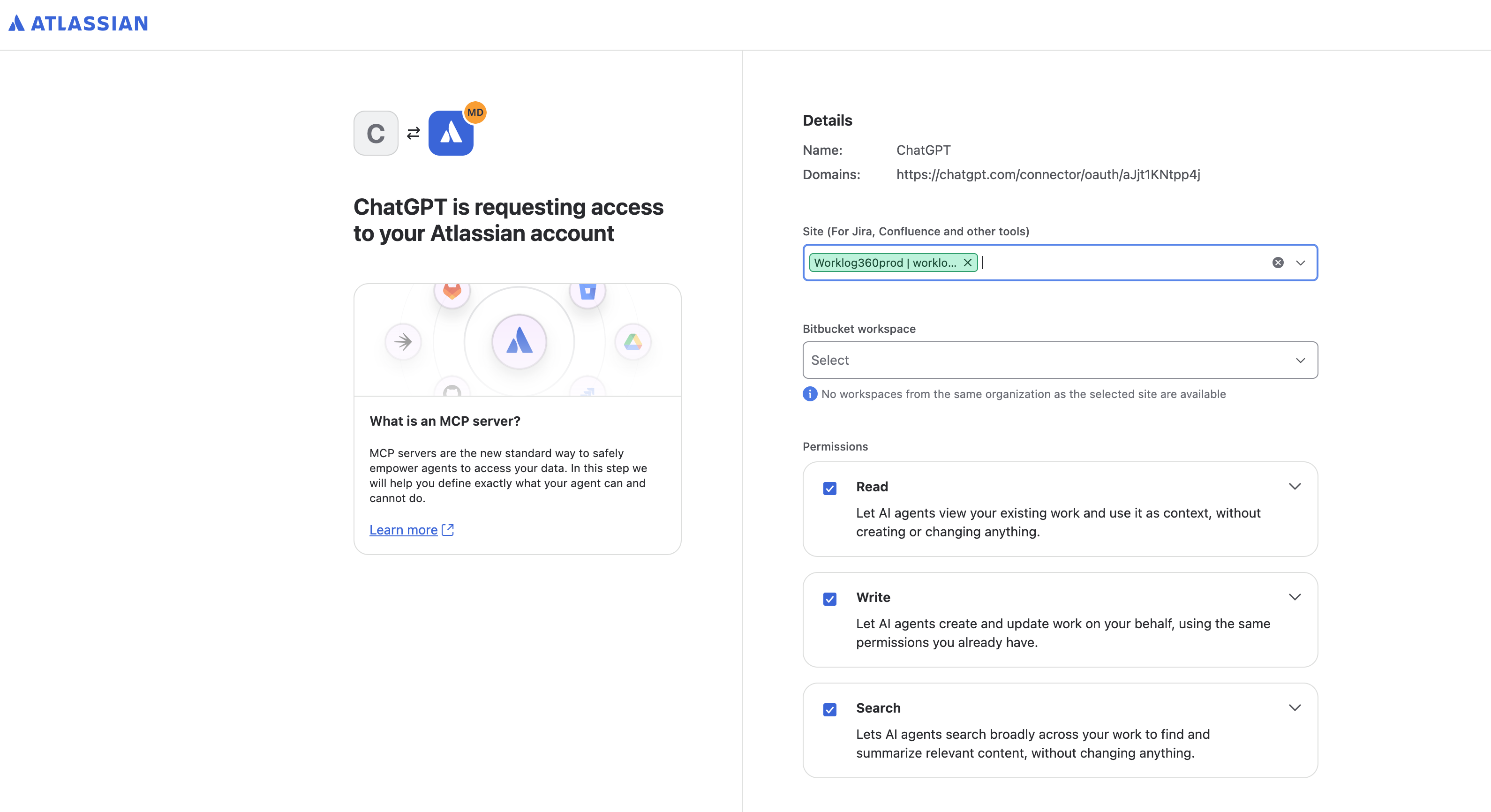
Select the Jira Cloud site you want to access, if prompted.
-
Review the requested permissions.
-
Approve the connection.
Atlassian uses OAuth 2.1 authentication, and its tools operate within your existing Atlassian permissions.
Step 4 — Start a Conversation
Open a new ChatGPT conversation and enable or select the Atlassian integration.
Ask:
Show my Jira issues currently in progress.
Your assistant should retrieve the issues that your connected Atlassian account is permitted to access.
4. Connect Atlassian MCP to Claude
Option A — Install the Official Atlassian Connector
-
Open https://claude.ai.
-
Navigate to Customize → Connectors.
-
Browse the available connectors.
-
Search for Atlassian.
-
Select the available official connector.
-
Click Connect or Install.
-
Sign in with your Atlassian account.
-
Review and approve the requested permissions.
For Claude Desktop, you can also use Settings → Extensions → Browse extensions → Plugins to find the Atlassian integration.
Option B — Add Atlassian MCP Manually
If the Atlassian connector is not available in your directory:
-
Open Customize → Connectors.
-
Select Add → Custom → Web.
-
Enter
Atlassianas the connector name. -
Enter the following URL:
https://mcp.atlassian.com/v2/mcp -
Continue with the detected authentication settings.
-
Add the connector.
-
Sign in to Atlassian when prompted.
-
Approve the requested access.
The connector can now be enabled from the + → Connectors menu in a Claude conversation.
5. Test Your Atlassian MCP Connection
Once connected, try these prompts.
Find assigned Jira issues
Show my Jira issues that are currently in progress.
Find a specific issue
Show me the details of PROJ-16.
Retrieve existing worklogs
Show the time entries logged on PROJ-16 this week.
Find work by description
Find the issue assigned to me that relates to implementing the login screen.
If the assistant can retrieve your authorized Jira information, Atlassian MCP is connected successfully.
6. Use Atlassian MCP Together with Worklog360 MCP
After connecting both integrations, enable them in the same AI conversation.
Your AI assistant can then coordinate actions between Atlassian and Worklog360.
Example 1 — Find an Issue and Log Time
Find the Jira issue assigned to me about API authentication and log 4 hours on it today, with 3 hours billable.
The assistant can:
-
Use Atlassian MCP to find the relevant Jira issue.
-
Identify the correct issue key.
-
Use Worklog360 MCP to create the time entry.
-
Return the result to you.
Example 2 — Find and Edit an Existing Worklog
Find my time entry from yesterday on PROJ-16 and change the duration to 3 hours, with 2 hours billable.
The assistant can:
-
Use Atlassian MCP to retrieve existing worklogs.
-
Identify the matching entry.
-
Use Worklog360 MCP to update the worklog.
-
Confirm the result.
If more than one worklog matches, the assistant may ask you to identify the correct one.
Example 3 — Log Time from a Jira Issue
Show me my issues in progress. I want to log 2 hours today on the login implementation issue, all billable.
The assistant can first retrieve your issues, help identify the correct work item, and then use Worklog360 to create the entry.
7. You're Ready
With both connections enabled, your AI assistant can help you find Jira work and manage time entries using Worklog360.
Try this prompt to get started:
Show my Jira issues currently in progress and help me log today's work using Worklog360.
For more examples, see Time Tracking & Timesheets with AI.
Related Guide
Return to Worklog360 MCP — Overview to explore capabilities, natural-language examples, and other connection guides.
Next step: Explore natural-language time tracking examples or manage team approvals with AI.